How To Compare Two Columns In Excel
When it comes to working with data, whether it’s a basic list of entries or a large dataset, Excel is usually one of the go-to tools for most people, and for good reasons. First off, it allows you to visualize data in a variety of ways, from simple pie and line charts to more complex sunbursts and treemaps. Its interface is also pretty intuitive even for beginners, and if you get lost, there’s always the search bar to help you out.
On top of this,Excel is rich in features for organizing and analyzing datatoo. You have the option toalphabetize the data in Excel, filter the entries, remove duplicate and blank cells, and even extract specific portions of text from cells. Another handy data analysis feature in Excel is comparing columns, something you’ll typically use for things like matching placed orders with fulfilled ones, tracking scheduled versus actual employee attendance, and comparing customer data between two time periods. There are multiple ways to compare two columns in Excel, and in this guide, we’ll cover three of these methods.
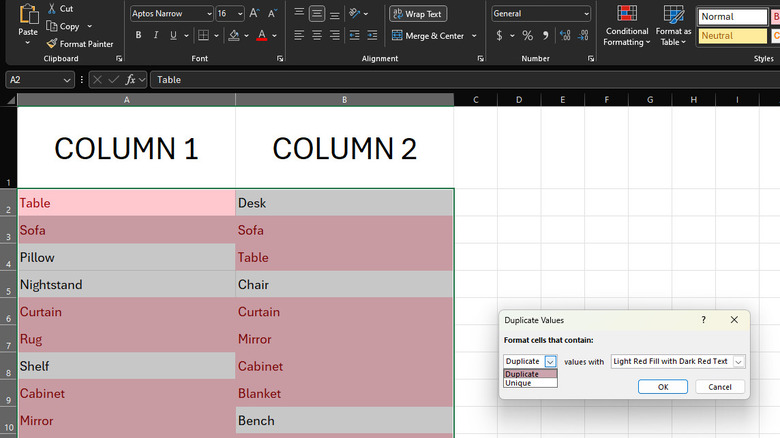
Use conditional formatting to highlight similar or different values
Conditional formatting is one of thebest hacks in Excel, as it lets you highlight key data, making it easier and faster to analyze your sheet at a glance. It typically comes in handy when you need to spot approaching or missed deadlines, track task completion, and display a budget’s low and high figures. However,you can also use conditional formatting to compare two columns in Excel. Here’s how:
Once you’re done comparing the data, you can remove the conditional formatting by going to Conditional Formatting > Clear Rules > Clear Rules from Entire Sheet.

List similar values in a different column with VLOOKUP
While Excel’s conditional formatting shows whether data is similar or different between two columns by highlighting it, you might prefer to extract these values into a different column for better organization and clarity. This is where VLOOKUP can help.VLOOKUP is an Excel function designed to make it easier to look up information on your spreadsheet. When comparing two columns, you can use it to know which data from the first column is also found in the second column. Here’s a step-by-step guide onusing VLOOKUP in Excelto compare two columns:
Hit Enter to apply the formula. To apply the formula to the rest of the rows, grab the small square in the bottom-right corner of the cell (fill handle) and drag it to the end of the column to fill the entire column. The third column should now be filled with results. If a value in the first column matches one in the second column, that same value will appear as a result. If you get a #N/A error instead, it means the value isn’t in the second column.

Match the two columns row-by-row with comparison operators
If you need to compare two columns in Excel row-by-row instead of the entire column at once, use comparison operators. They check the values in each row and output TRUE if the data are the same or FALSE if the data don’t match. Follow these steps to use comparison operators in Excel:
If you’re checking for matching data, the first row of the third column should look like =A2=B2. Otherwise, it should be =A2<>B2.
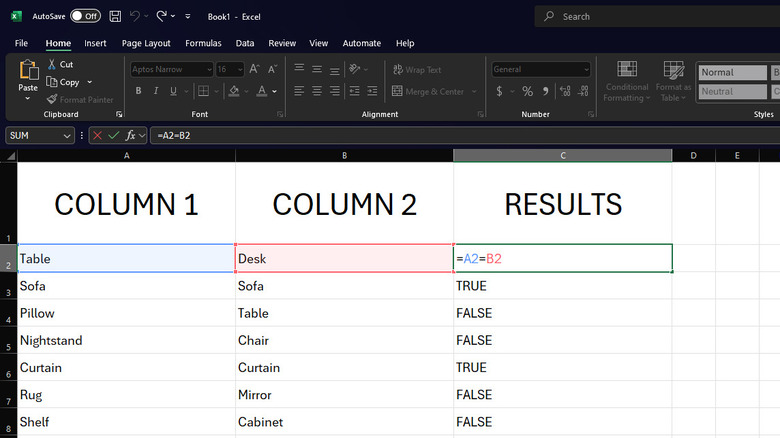
Press Enter to save the formula, and you should see a TRUE or FALSE value in the cell. Apply the same formula to the rest of the column by grabbing and dragging the fill handle in the first row of the results column. If you want to show custom words instead of the default TRUE or FALSE, you can add an IF function to your formula to set your own result. The formula for checking whether the data are similar then becomes =IF(A2=B2, “Same”,“Different”), where Same is the result if A2=B2 is true and Different is the result if A2=B2 is false.
You’ll have to drag the formula cell again to the bottom of the column to apply this new IF formula to all the other rows.

